
Before You Start
| Requirement | Details |
|---|---|
| Manager-level Toast Web access | You need permission to manage employees and jobs. |
| Loop access email | We'll use the same email linked to your marketplace access for your Toast login. |
| ~5 minutes | Quick setup — no downtime for your POS. |
Step 1: Create Job
The Job defines what the Loop user can see and do. You only need to do this once.
- Log in to Toast Web at https://toasttab.com.
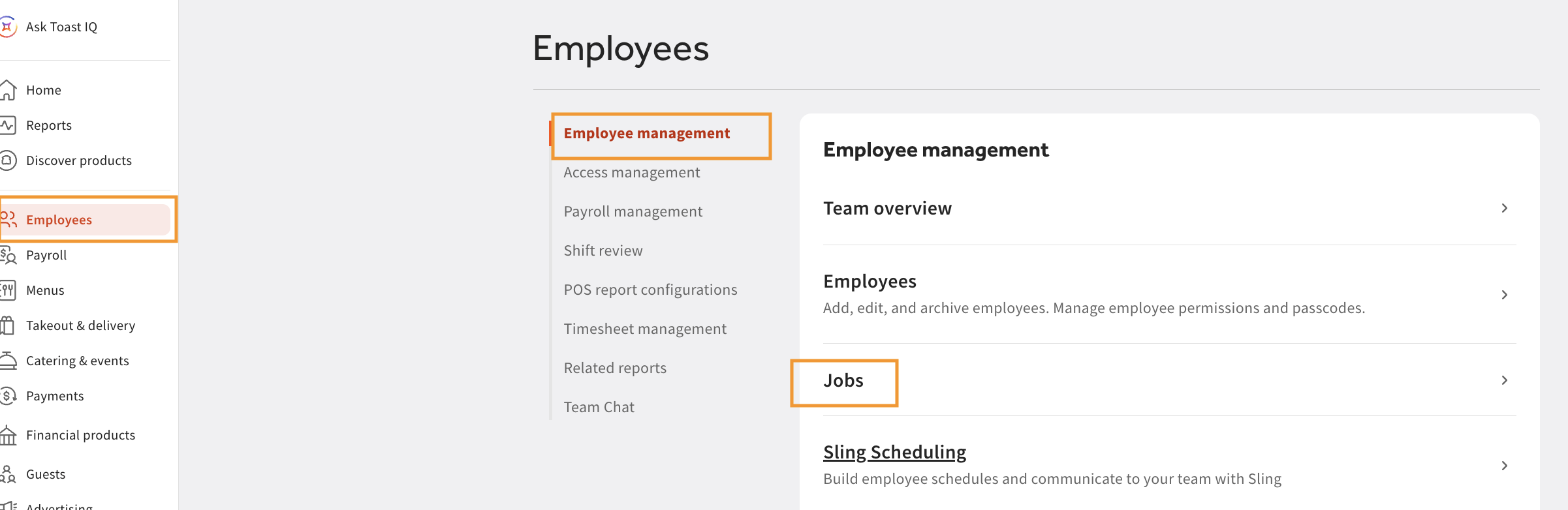
- Go to Employees › Employee Management › Jobs.
- Click + Add Job → Create New Job.
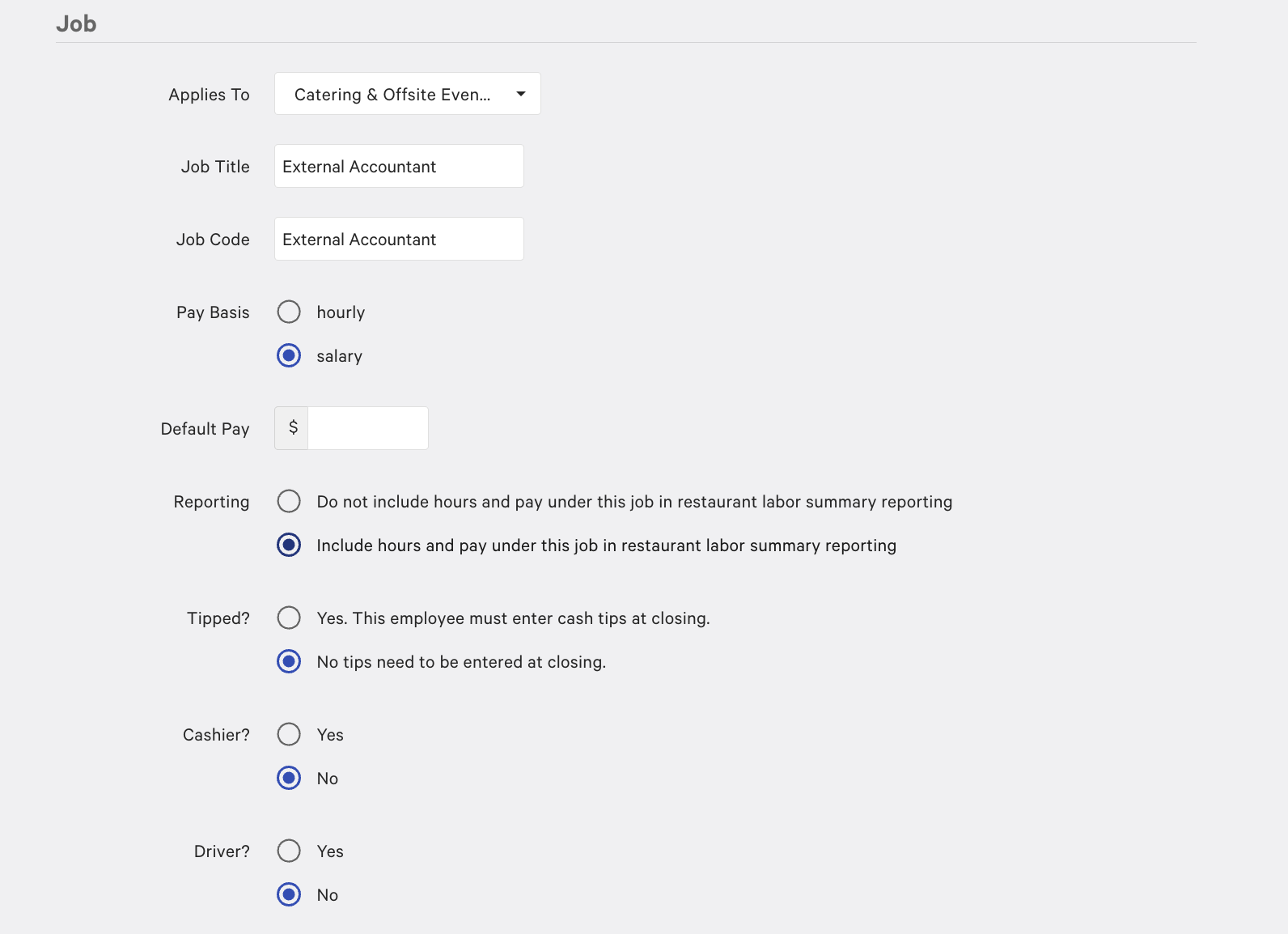
- Fill in the job details:
- Applies To: Select All Locations, or choose specific locations if Loop only needs access to certain sites.
- Job Title:
External Accountant(orLoop— either works) - Job Code:
External Accountant(orLoop— either works) - Pay Basis: Salary
- Tipped? No tips need to be entered at closing
- Cashier? No
- Driver? No
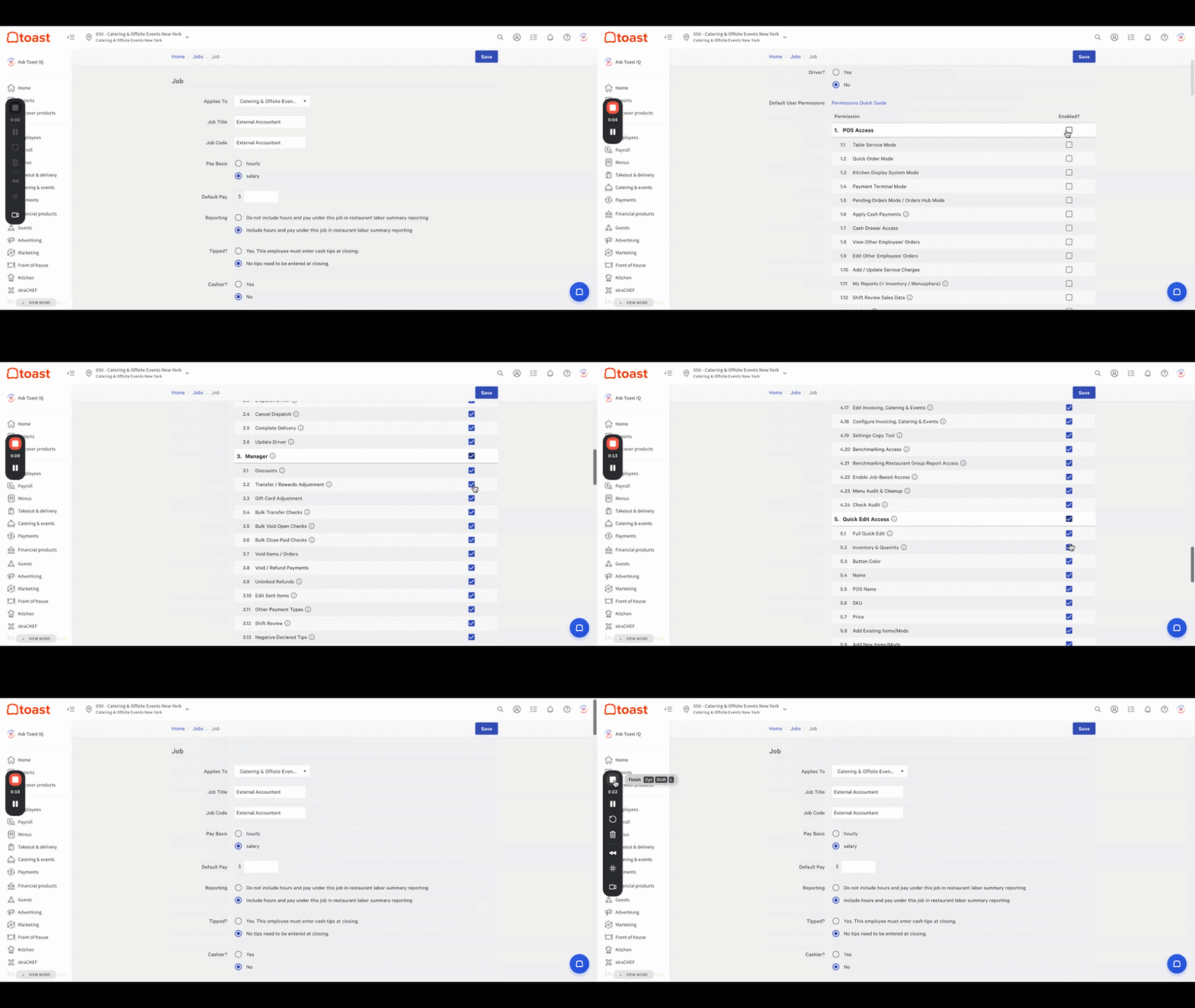
- Scroll down to Default User Permissions and enable all permissions from sections 1 through 6:
- POS Access
- Delivery Access
- Manager
- Restaurant Admin
- Quick Edit Access
- Web Setup
- Click Save on the top right.
Note: Toast may send a one-time verification code to your phone when saving a job with sensitive permissions. Enter the code when prompted to proceed.
Step 2: Create the Employee Profile
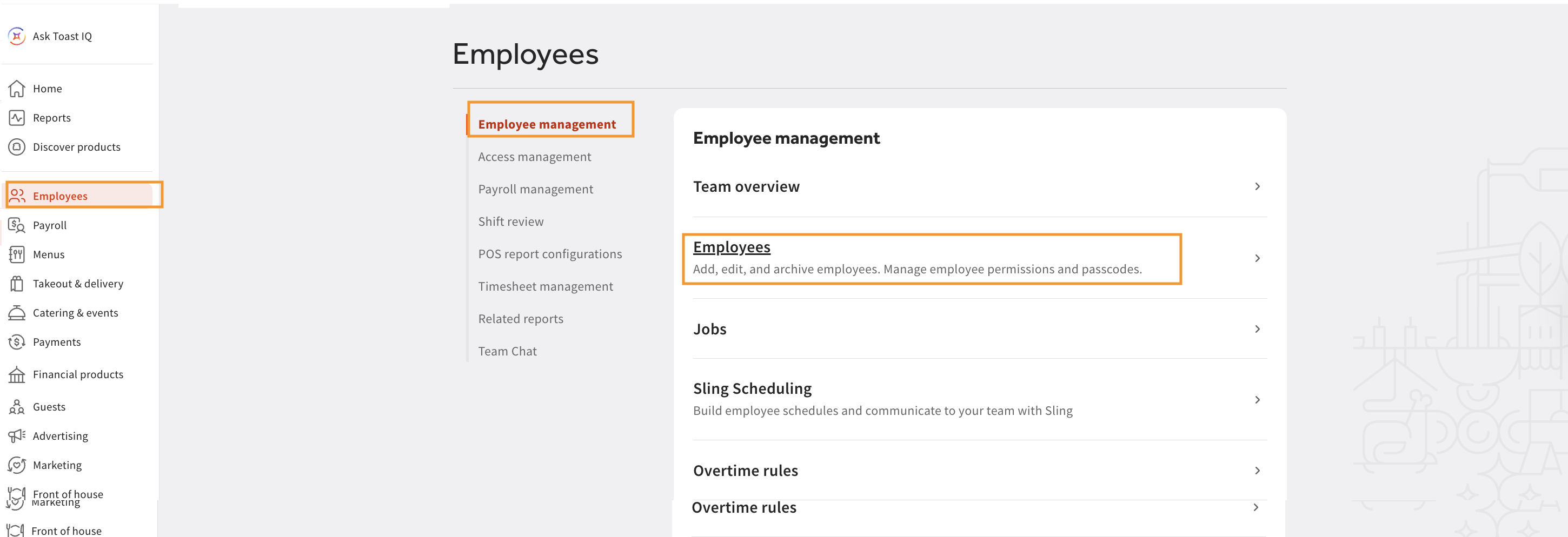
- Go to Employees › Employee Management › Employees
- Click + Add New Employee.
- Fill in the employee details:
- First Name: Loop (or your restaurant name/abbreviation)
- Last Name: User
- Chosen Name: e.g.
Loop User - Email: The same email used for your marketplace (e.g. Uber Eats, DoorDash) access — Loop will share this for Toast login too.
- POS Access: You can leave it blank
- Under Jobs and Pay, select the External Accountant job you created in Part 1.
- Make sure Invite to create account is toggled to Yes — this sends the user a secure link to set up their Toast Web login.
- Click Add.
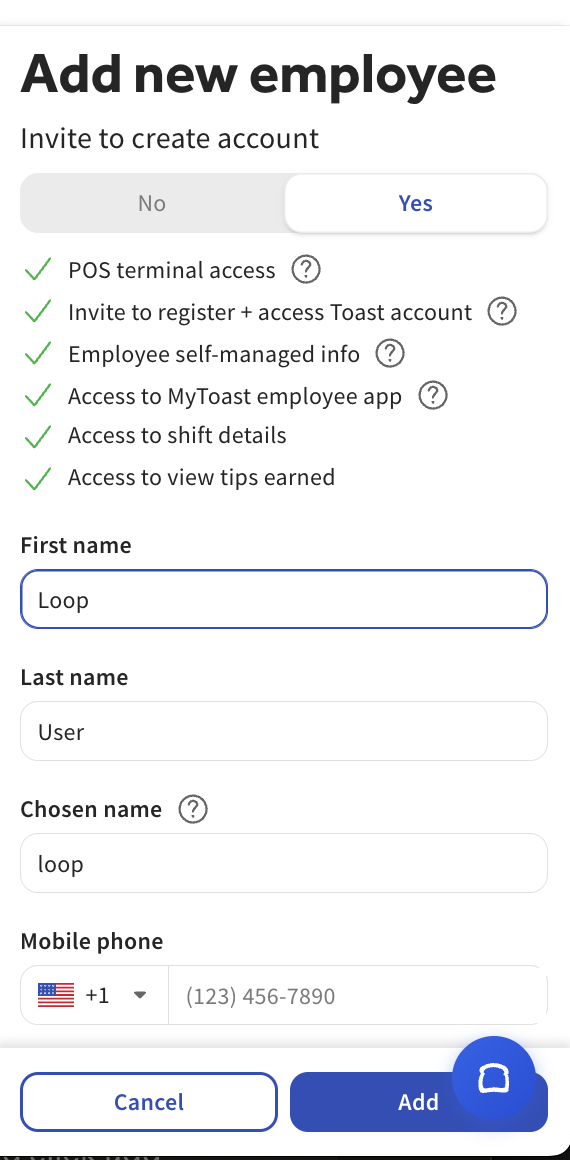
Toast will send an invitation email to the address provided. The team at Loop will accept the invite to activate their account.
After the Invite Is Sent
| Status | What It Means |
|---|---|
| Invited | Email sent. Invite expires after 7 days. |
| Expired | The invite wasn't accepted in time — click the status to resend. |
| Active | User has accepted and can log in. |
Need to resend the invite? Go to Employees › Employee Management › Employees, find the user, and click the Invited status icon to resend.